
Why send a test message first
A test message proves that SpamDuster can deliver to your mail server before any live mail depends on it. Your MX records still point at your current server while you test, so nothing is at risk.
Send the test message
- In the console, open Advanced.
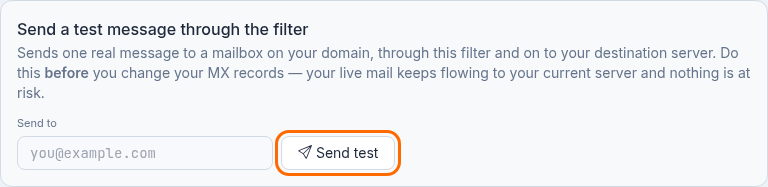
- Under Send a test message through the filter, enter a mailbox on one of your domains in Send to, for
example
[email protected]. - Select Send test.
- Check that mailbox. The message should arrive within a minute or two.
If the test message does not arrive
Check these in order:
- The recipient's domain is listed on Mail domains. See Add your mail domains.
- The destination test passes: open Advanced and select Test without saving under Destination mail server. See Set your destination mail server.
- Search for the message in Log search to see what happened to it. See Find a message and prove it was delivered.
Updated 2026-10-26Need help? Open a ticket in the billing portal.