
Who can use the console
The console is for the people who run your mail: administrators. Give each person their own account, so the Audit log shows who changed what.
Console accounts are not mailbox logins. To review blocked mail, a person needs an Admin account.
Add a user
- In the console, open Users.
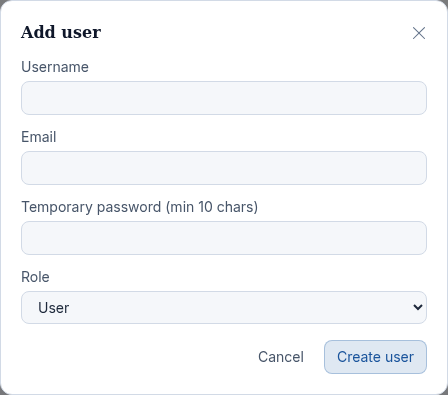
- Select Add user.
- Enter a Username (3 to 32 letters, digits, dots, dashes or underscores), the person's Email, and a Temporary password of at least 10 characters.
- Choose the Role: Admin.
- Select Create user.
- Give the person the username and temporary password. They choose their own password at first sign-in.
Disable, reset or delete an account
Each row on Users has these actions:
| Action | What it does |
|---|---|
| Disable / Enable | Disabling blocks sign-in immediately and ends any session the person has open. |
| Reset pw | Sets a new temporary password. The person must choose a new password at their next sign-in. |
| Make admin / Make user | Changes the role. |
| Delete | Removes the account. This cannot be undone. |
Change your own name, email or password
Your own account is managed in My profile: select your name at the top right of the console. See Change your password or email address.
Updated 2026-10-26Need help? Open a ticket in the billing portal.