
What Filter config is
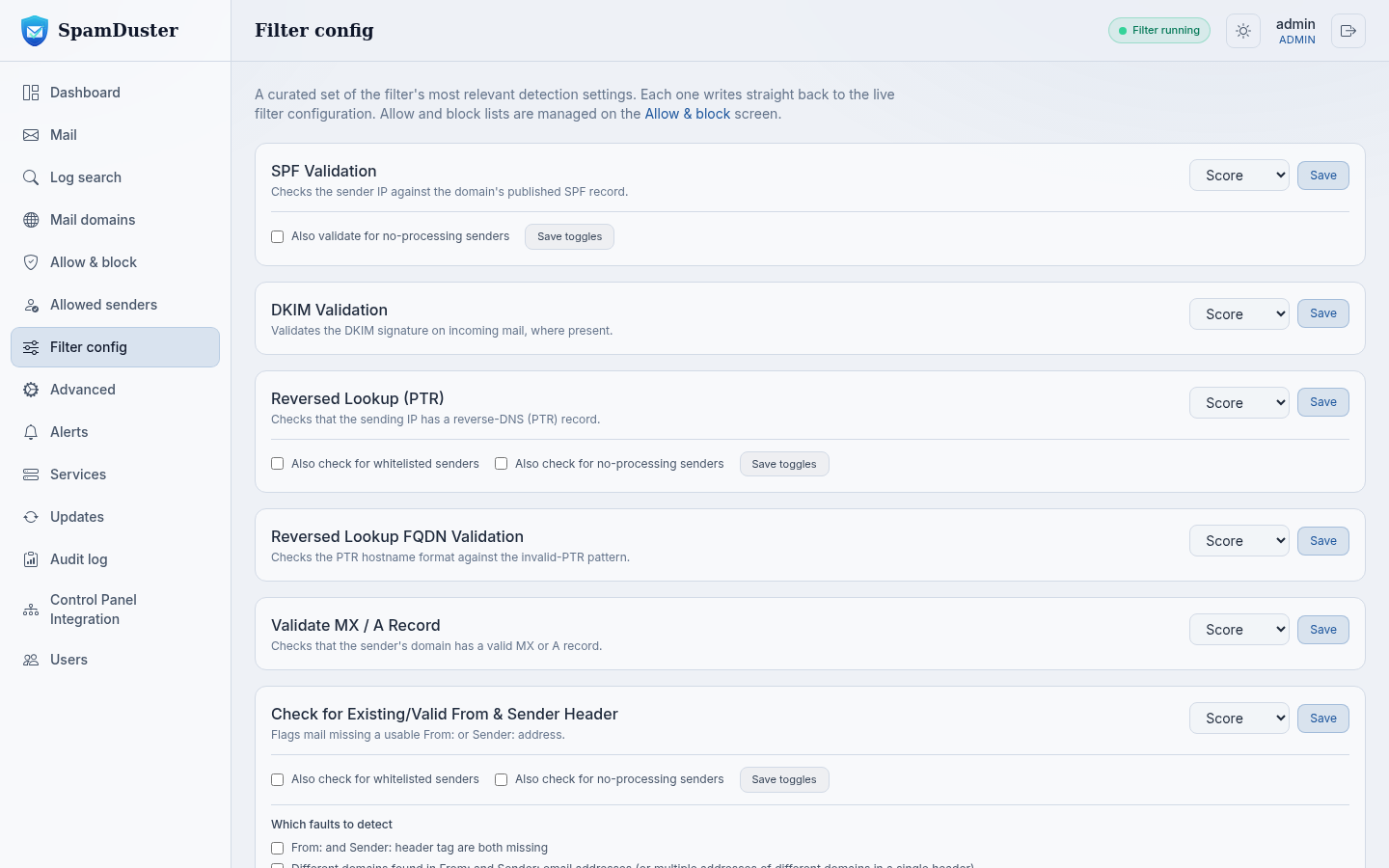
Filter config is a short list of the filter's most important detection checks. Each change is written straight to the live filter; there is nothing to restart. The default settings suit most mail, so change them only for a reason.
What Block, Score and Disabled mean
| Setting | Effect |
|---|---|
| Block | A message that fails the check is rejected. |
| Score | Failing the check adds to the message's spam score. The message is blocked only if its total score is high enough. |
| Disabled | The check is not run. |
Score is the safer choice for checks that some legitimate senders fail, because one failed check alone does not block their mail.
Change a check
- In the console, open Filter config.
- Find the check, for example SPF Validation.
- Choose Block, Score or Disabled.
- Select Save on that row.
Greylisting
Greylisting defers mail from a sender the filter has not seen before with a temporary error. Real mail servers try again a few minutes later and the message is accepted; many spam tools never retry. The delay applies only to the first message from a new sender.
Under Delaying / Greylisting, tick or untick Enabled and set Delay Time (minutes). The default delay is 5 minutes. Check Filter config to see whether greylisting is on for your server. See also Mail from new senders is delayed.
Blocked attachment types
Set External Attachment Blocking to Block to refuse attachments by file type. File extensions lists the
types, separated by |, for example exe|scr|js. Add or remove an extension and select Save.
Attachments inside zip, rar and 7z archives are inspected separately by Malware Archive Inspection, including password-protected archives.
Phishing detection
Phishing Detection (content-based) looks at the content, links and claimed identity of each message to catch credential theft and impersonation, including mail that passes SPF, DKIM and DMARC. Blocked phishing goes to the Phishing folder on the Mail page.
Manage list next to it holds sender domains you trust, such as your partners. Trusted domains skip phishing scoring, but only when the message really comes from that domain.