
Where blocked mail goes
Blocked mail is kept on the Mail page of the console, sorted into folders. Nothing is silently deleted: when SpamDuster refuses a message, the recipient never gets it, and a copy is kept so you can review it and release it if it was wanted.
| Folder | What it holds |
|---|---|
| Spam | Mail blocked as spam. |
| Phishing | Mail blocked as phishing: fake login pages, fake invoices, impersonation. |
| Viruses | Mail blocked because it carried a virus or other malware. |
| Discarded | Spam kept out of the filter's learning, such as floods of identical spam. Each message says whether it was blocked or delivered. |
| Accepted | Copies of mail the filter delivered. |
| Not spam | Copies of mail marked as not spam. |
How long copies are kept is set in Advanced. See Change how long mail and logs are kept.
Find a blocked message
- In the console, open the Mail page.
- Select the folder, for example Spam. The number next to each folder name is how many messages it holds.
- To narrow the list, type part of the sender or subject in Search sender or subject, set the From and To dates, and select Apply.
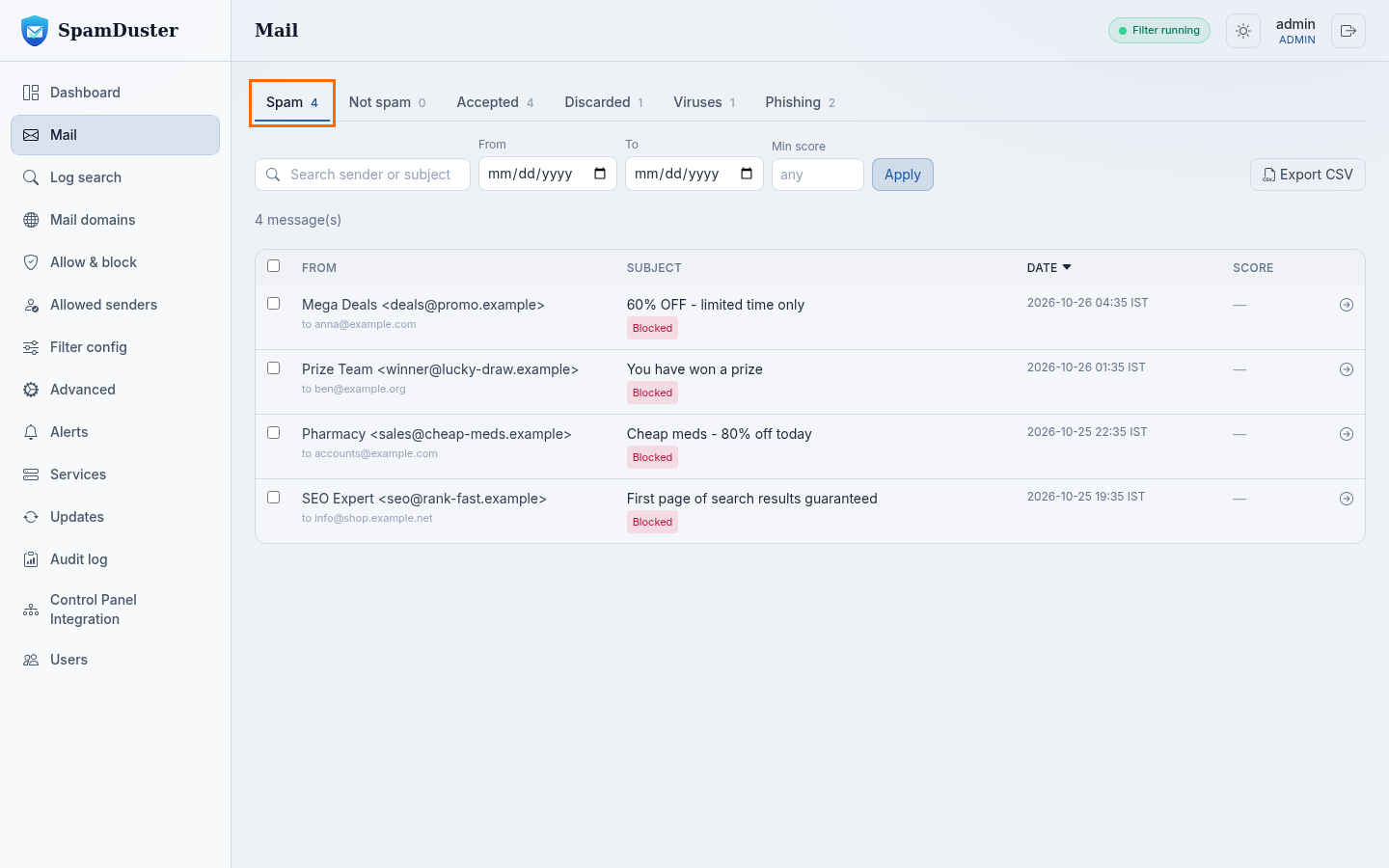
To save the list as a spreadsheet, select Export CSV.
See why a message was blocked
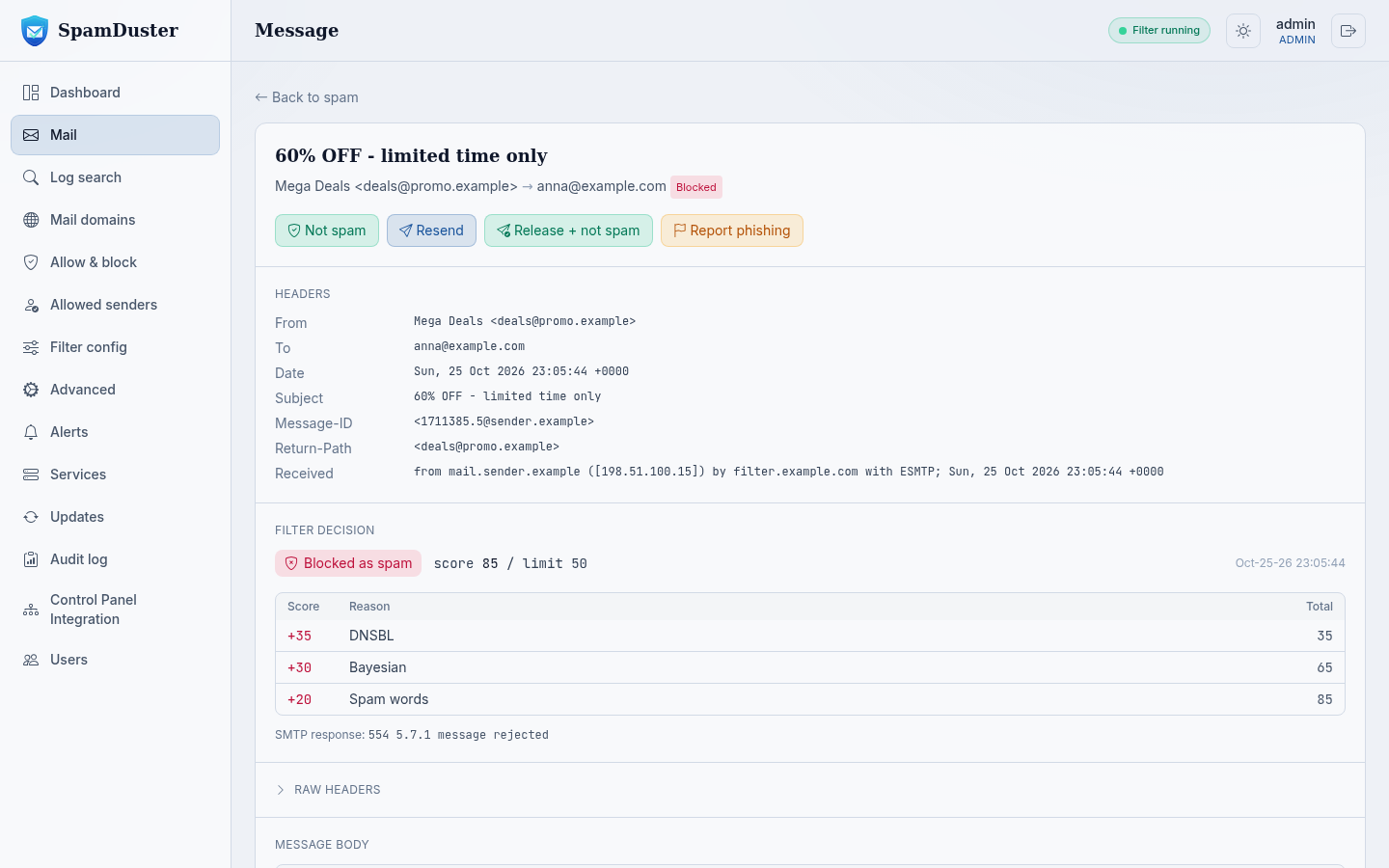
Select a message to open it. The message page shows its headers, its content and a Filter decision section: the verdict, and for spam the score and each check that added to it.
What to do next
- The message was wanted: Release a blocked message.
- The sender is always wanted: Allow a sender.
- Spam reached a mailbox: Teach the filter what is spam.
- You cannot find the message at all: Find a message and prove it was delivered.
Updated 2026-10-29Need help? Open a ticket in the billing portal.