
Where to find Mail Filtering
In cPanel, open Email > Mail Filtering. It appears when your hosting provider has installed the SpamDuster plugin on the server (see Install the cPanel & WHM plugin).
The page shows only your own domains and their mail. Nobody else on the server can see or act on it.
What the domain cards mean
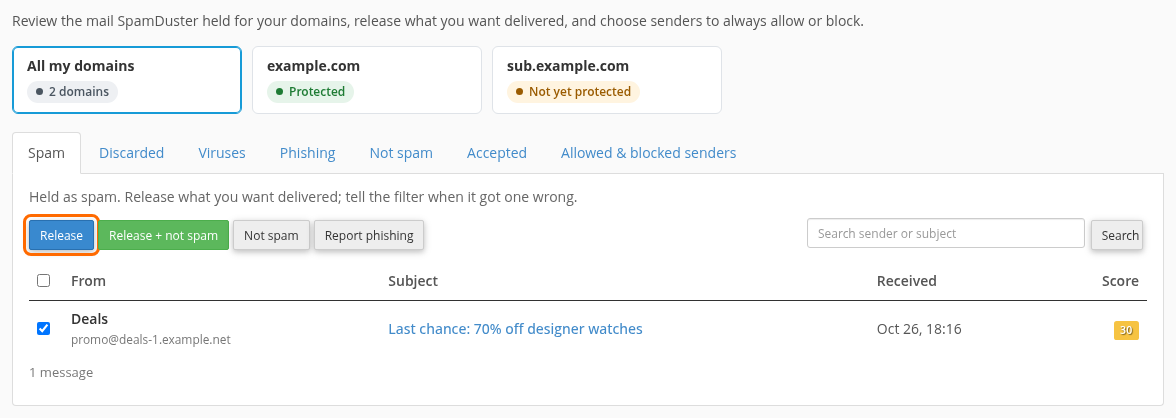
The cards at the top list your domains. Select All my domains or one domain to show its mail.
- Protected: mail for the domain goes through SpamDuster.
- Being set up: the domain's mail is being moved to SpamDuster. This takes up to a few hours.
- Not yet protected: the domain's MX record does not point to SpamDuster yet. Ask your hosting provider.
What each folder holds
- Spam: mail held as spam. You can release it.
- Discarded: bulk and low-quality mail set aside. You can release some of it; the rest only your hosting provider can release.
- Viruses: messages that carried a virus or other malware. Listed for your information; they cannot be released here.
- Phishing: messages made to look like a bank, a service or a colleague to steal passwords. Listed for your information only.
- Not spam: messages you or the filter marked as good mail.
- Accepted: recent mail SpamDuster accepted and delivered.
Use Search sender or subject to find a message in the open folder.
Release a message
- Open Spam or Discarded.
- Select the message, or several.
- Select Release to deliver them, or Release + not spam to deliver them and teach the filter they are good mail.
- Confirm.
To read a message first, select it in the list. It opens as plain text, for your safety, with its headers under Show headers, and the same buttons.
Teach the filter
- In Spam, Not spam teaches the filter a message is good mail without delivering it.
- In Not spam or Accepted, Spam teaches the filter a message is spam.
- In Spam, Not spam or Accepted, Report phishing reports a message as phishing. Nothing is moved or delivered.
Every button asks you to confirm first.
Allow or block a sender
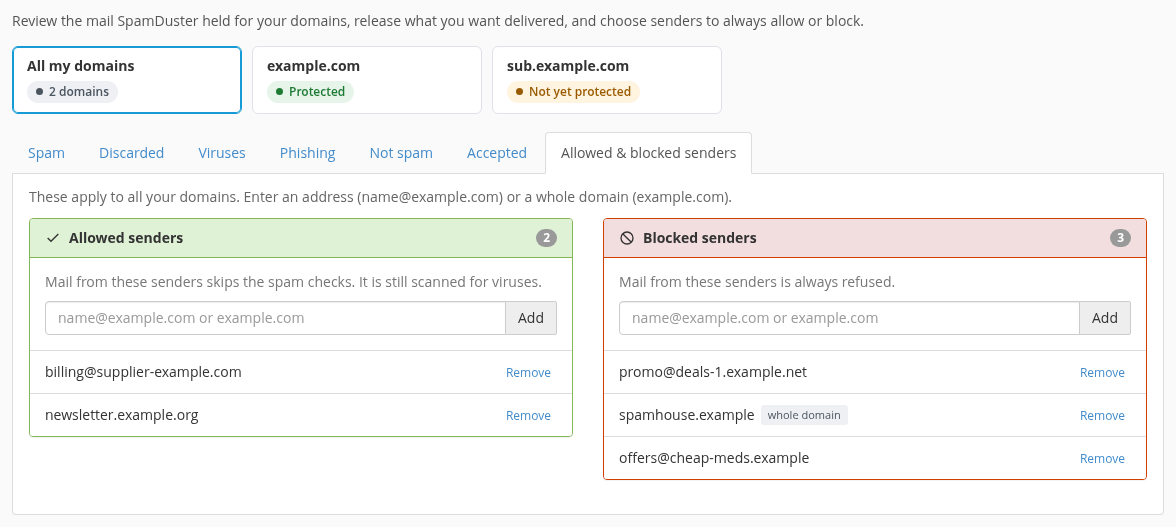
- Open Allowed & blocked senders.
- Under Allowed senders or Blocked senders, enter an address (
[email protected]) or a whole domain (example.com), and select Add.
Mail from an allowed sender skips the spam checks but is still scanned for viruses. Mail from a blocked sender is always refused. Select Remove to take a sender off a list. The lists apply to all your domains.
Your outgoing mail
When your hosting provider also uses SpamDuster's outbound filter (see SpamDuster On-Premise Outbound), cPanel shows an Outgoing mail tab. It lists only the mail your own account sent, never another account's. It shows how much your account sent in the last 7 days, the messages SpamDuster refused, and the ones it asked the server to send again later.
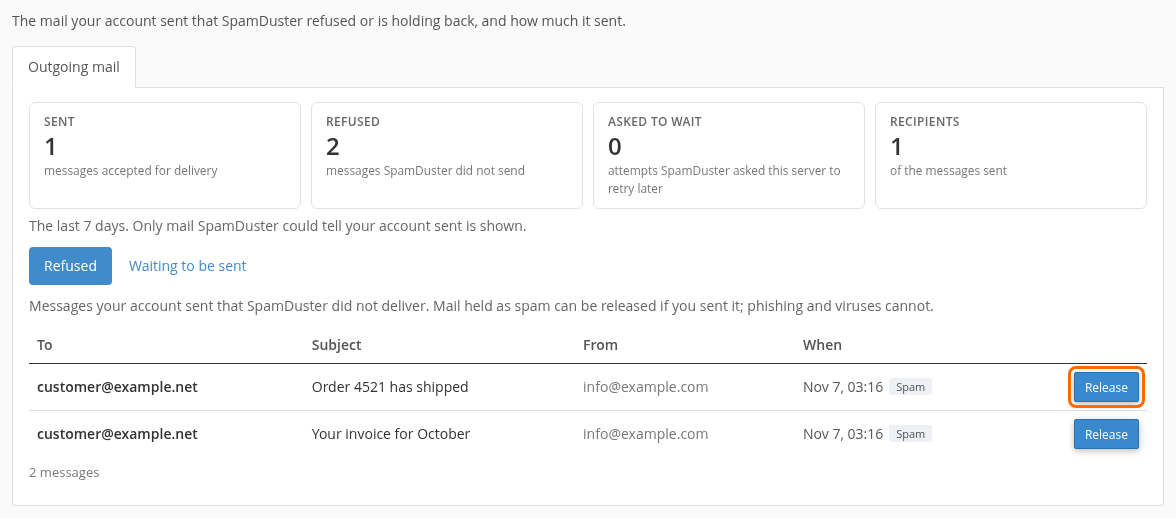
- Open Outgoing mail. The cards show Sent, Refused, Asked to wait and Recipients.
- Under Refused, find the message. Mail held as spam shows Release: select it and confirm to send the message as it was written. Only release mail you sent yourself. Phishing and virus messages cannot be released.
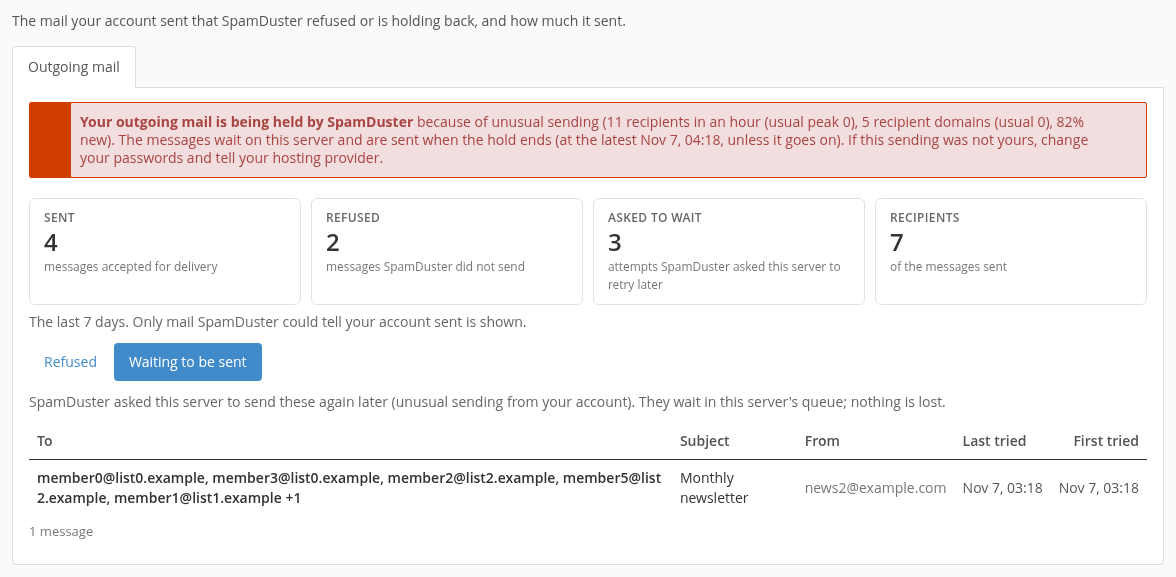
If SpamDuster is holding your account's outgoing mail because of unusual sending, a red notice says so and why, and when the hold ends. Under Waiting to be sent you see the held messages. They stay on the server and are sent when the hold ends; nothing is lost. If you did not send this mail, change your passwords and tell your hosting provider.
If releasing is not offered, your hosting provider has not turned it on. If the tab says outgoing mail is not available right now, tell your hosting provider.
If the page says mail filtering is not available
- None of your domains is filtered yet: a new domain takes a few minutes to reach SpamDuster. Reload the page later.
- Mail filtering is not available right now: the server cannot reach SpamDuster at the moment. Try again later, and contact your hosting provider if it continues.