
What connecting a control panel does
SpamDuster works with any mail server without a control panel. If your mail server is run by a hosting control panel, connecting the panel keeps its domains on SpamDuster in sync automatically: add a domain in the panel and SpamDuster starts accepting its mail, with no list to maintain by hand.
A SpamDuster Cloud filter protects one mail server, so you connect the control panel of that server. The panel has its own tokens and can only see and change its own domains. Each hosting customer on the panel sees only the domains the panel assigns to them.
For cPanel & WHM, the SpamDuster plugin does the panel's side. See Install the cPanel & WHM plugin.
Turn on the integration
- In the console, open Control Panel Integration.
- Under Status, select Enable control panel integration.
While the integration is disabled, every control panel request is refused.

Add a control panel
- Under Add a control panel, enter a Name you will recognise, for example
cPanel server 2. - In IP addresses the panel calls from (one per line), enter the IP address the panel server connects from.
- Select Add control panel.
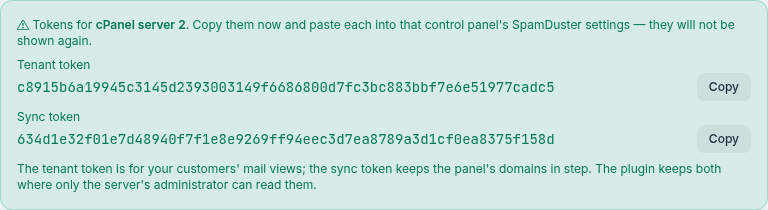
- Copy the two tokens that appear, the Tenant token and the Sync token. They are shown only once.
- Paste both into that control panel's SpamDuster settings.
The tenant token is for your customers' mail views; the sync token keeps the panel's domains in step.
SpamDuster accepts a request only with that panel's own token, from one of its IP addresses, while both the panel and the integration are enabled. A request from any other address is rejected even with a valid token.
If a token is lost or leaked
Select New tenant token or New sync token on the panel and confirm. The old token stops working immediately; paste the new one into the panel's SpamDuster settings.
Upgrade a panel that uses one token
A panel added for an older SpamDuster plugin has a single token and is marked Older mode. Once the panel runs the current plugin, select Upgrade and confirm. The old token stops working at once, and two new tokens are shown: paste both into the panel's SpamDuster settings.
When you add a panel, leave The panel runs an older SpamDuster plugin off unless it really does.
Disable or delete a panel
- Disable refuses the panel's token until you enable it again. Its domains keep being filtered.
- Delete removes the panel and its token. Its domains stay on SpamDuster and keep being filtered, but nothing updates them any more. They are listed under Domains left by deleted panels, where Remove these domains stops filtering them.